Ads 468x60px


nav bar

Adsence


Featured Posts

Wednesday, 9 April 2014

11 Amazing WhatsApp Tricks Must See !!!


WhatsApp is a cross platform messaging app and is very popular among every age of people. So, today we will be sharing some of the best WhatsApp tricks for your Android and iPhone smartphones. You can also try these Whatsapp tricks on other smartphones like Nokia, Java, Symbian, Blackberry and Asha devices and let us know whether it is working or not.

Amazing Whatsapp Tricks 2014

1. Recover Deleted Messages

It happens that we unknowingly delete messages on Whatsapp and then regret for it. But now you can recover deleted message on Whatsapp by using this simple trick.

WhatsApp stores all your messages on your phone’s external memory (SD card) and for the same reason you can recover deleted messages. Go to SD card > WhatsApp > Databases and find these two files named (msgstore-yyyy..dd..db.crypt and msgtore.db.crypt ). The first file has all the messages that you have sent or received in last seven days and the second file has the messages of the current day. You can read the messages by using an text editor.

2. Send Two Pictures as One

If you use WhatsApp consistently then you might have seen a trick where you see one image and when you click on it you get different image. This trick can be achieved with the help of an app called FhumbApp for iPhone and Magiapp tricks for Whatsapp for Android. By using this app you can hide two images in one. This app is only available for Android and iOS devices.

3. Change Your Friends Profile Picture

Another WhatsApp trick is to change your fiends profile picture. This change will take effect only on your phone and not everyone else. But I think that’s enough to make your friend say how did you do this! Follow below steps to do it.

  • First select a profile picture that you want to set for your friend (anything funny)
  • Resize the photo to 561×561 pixel
  • Rename the photo with your friends mobile number
  • Now save the image in SD card > WhatsApp > Profile picture
  • Put your phone in to flight mode or disable Network and WiFi connectivity
  • That’s it! It’s show time :D .

4. Create Fake Conversations

If you have seen a screen shot of fake conversation made between Sachin,Virat Kholi and Suresh Raina on facebook or any other social network then you might be thinking how do they do it? Well, it’s very simple. All you have to do is download an app Called WhatSaid and easily create fake conversations of celebs to play pranks on your friends.

5. Hide Profile Picture

A profile picture on any account makes it easier to recognize you on any network. Now if you want to hide your profile picture on Whatsapp then download and install a simple app called WhatsApp Plus and there you go online with a hidden profile pic.

6. Find Friends Profile Picture

Sometimes some of our friends put really cool kind of profile picture and we wish to download it. By default WhatsApp doesn’t come with any of the downloading option, but there is a simple workaround to get your friends profile pic. Go to SD card > WhatsApp and Profile Pictures, here you can find all the profile pictures of your friends associated with their mobile number and not names.


7. Stop Automatic Multimedia Content Download

In the earlier version of WhatsApp all the videos, audios and images that your friends sent to you were downloaded automatically. But with the latest update WhatsApp has given an option to stop automatic downloading of multimedia contents. To do this go to Settings -> Chat Settings -> Media auto-download -> and uncheck all the options namely ‘When using mobile data’, ‘when connected on WiFi’ and ‘When roaming’.

8. Send or Upload PDF, APK and ZIP files

WhatsApp has restriction on what file format you send using the app. You can only send videos, images and audios using WhatsApp, but what if you have to send PDF, ZIP and other formats? Here is a simple trick to send PDF, APK and ZIP files using WhatsAPP.

Follow below steps:

  • Download and Install Dropbox app and CloudSend app on your phone
  • Open CloudSend, next you’ll be asked to link CloudSend with Dropbox, allow it.
  • Now share the file or document you want to send on CloudSend
  • After sharing, CloudSend will automatically upload that file with Dropbox and will give a link to that file
  • Now share the link with your friends so that they can download your file. A Bit time-consuming yet effective way to share unsupported formats.
9. Change WhatsApp Themes

This is one of coolest WhatsApp tricks because it allows you to customize your WhatsApp look the way you wish. Now if you are bored with the same WhatsApp theme then her is how to change WhatsApp theme on Android. Download and Install WhatsApp PLUS Holo app and change the look of WhatsApp.

10. Use WhatsApp for Free Even After Expiry

WhatsApp is not a free to use application, but comes with a 1 year free subscription. After the validity you have to purchase WhatsApp by paying $0.99 or INR 64 to get one more year license. Now, if you are unable to pay this small amount then follow this trick to use WhatsApp for Free After Expiry. I have covered the procedure in detailed tutorial.

11. Password Lock WhatsApp on Android Phone

Privacy is important to everyone, but while using WhatsApp you don’t have any inbuilt security option to secure your conversation. But here we have another trick to Password Lock WhatsApp on Android Phone. Click previous link for the detailed tutorial on it.

These are the 11 best WhstApp tricks that you can try with your WhatsApp Application on your Android and iPhone smartphones. There are other several WhatsApp tricks, which I will update soon. Untill then try these WhataApp tricks on your phone and share with your friends on Facebook, Google + and Twitter.

Continue Reading...

Monday, 7 April 2014

HP Slate 7 Review| The Best Tablet At Lowest Price

-->


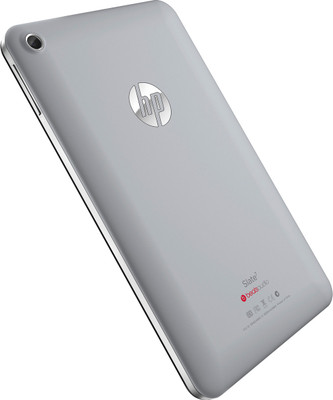
Buy HP Slate 7 Tablet: TabletIt's no secret that HP has struggled when it comes to tablets. The company has faced (and crashed into) its share of mobile device hurdles in recent years -- most notably, with the ill-fated and expensive TouchPad. With its latest foray into the tablet world, HP is hoping to hit one out of the park with the Slate 7, a budget tablet that retails for $170 in the US ($140 with instant savings). We set out to discover how the Slate 7 would fare in the competitive Android tablet market, especially compared to its current rival, the Nexus 7, and the forthcoming ASUS MeMo Pad HD 7. So, is the Slate 7 HP's little tablet that could? Read on to find out.

HARDWARE

For a tablet of its size (7.8 x 4.6 x 0.42 inches), the Slate 7 feels pretty heavy. Unlike some of its ilk, HP elected not to pursue a sleeker, unibody design, and the result makes for a device that's a little bulkier than you might want it to be. The Slate 7 has a stainless-steel frame surrounding a glass display with a standard black bezel. At the top of the tablet, two small screws hold the whole shebang together. The shiny HP logo emblazoned on the soft-touch backing (available in dark gray or bright red) is joined by relatively small, but still very noticeable Beats Audio branding (more on that later). The device's serial number can be found awkwardly squished on the steel accent on the side.
The power button is located at the top, along with an unmarked microSD card slot and a 3.5mm headphone jack. The volume rocker on the right-hand side (with the device facing you) is made of the same sturdy steel as those aforementioned components, and it's one place where HP didn't cut corners. Obviously, a budget tablet won't be made of 100 percent premium materials, but it's good that HP used them for those buttons that we frequently handle. Flanking the micro-USB socket at the bottom are two small speakers, whose performance we'll get into shortly. That port feels a little flimsy, and the wire wobbles quite a bit when jostled.

That being said, some lower-priced tablets feel like they have all the stability of a box of Kleenex, so the Slate 7 actually seems pretty sturdy by comparison. At 13.05 ounces, the little extra weight the Slate 7's carrying around is a testament to its solidity. The soft-touch backing feels luxe at first touch, but the chalky texture might grate after a while, even if it is decently scratch resistant. It also hides a rather flimsy plastic backing. Pressing down on the HP logo on the back of the tablet causes a noticeable (and audible) depression in the device's rear panel. The steel frame grants the Slate 7 some much-needed stability on the sides, but what's under the hood might be more fragile than it initially seems.

Out of the box, the tablet packs eight gigs of storage space (nearly six of which are actually usable), plus a microSD card slot. If you're hoping to beef up your storage space, know that you'll be limited to a 32GB card. The Slate 7 doesn't pack a whole bunch of bells and whistles -- there's no GPS or Bluetooth 3.0 or 4.0. Out of the box, it comes with Bluetooth 2.1 with EDR, 802.11b/g/n and an accelerometer. The latter proved to be reasonably responsive, though we did notice the occasional stutter as the display shifted orientation.


DISPLAY AND SOUND


Using the Slate 7 is an intensely vertical experience. The tablet is built according to a slightly narrower-than-normal form factor, and due to an unusual aspect ratio, everything is just... off enough to be noticeable. The 1,024 x 600 screen isn't great to begin with, especially when compared to the Nexus 7's 1,280 x 800 IPS display (currently $30 more, but a much better buy). At 169 pixels per inch, that resolution would have worked on a slightly less rectangular form-factor (a 5.86-inch display would have worked with the tablet's 4.44-inch width). Considering that the Slate 7 comes with stock Android 4.1.1, the flatness of the UI makes the stretch especially obvious. Even round icons are more oval than circle.

Again, for a budget tablet, we weren't anticipating much from the display, but the Slate failed to live up to even our modest expectations. The colors aren't particularly vibrant to begin with, but any viewing angle other than straight-on caused them to be significantly washed out. The technology HP used for oblique viewing angles -- "Fringe Field Switching" as opposed to IPS -- does little for the LCD display when the device is angled even a little bit away from the viewer.


When it comes to sound quality, HP is putting all its eggs in one Beats Audio-branded basket -- as it's done with many of its products. From the Beats logo on the back of the tablet, to the Beats-specific tab on the settings menu, HP is aggressively pushing the relationship at consumers.

The dual speakers located on the bottom of the tablet are adequate in the truest sense of the word, which is to say: they work. Because they're so close together, there's no real stereo sound despite there being two of them. Do they sound like $170 speakers? Not really. Played at reasonably loud volumes, the audio is strained and tinny, as is the case with many a mobile device. With the Beats Audio feature toggled on, vocals on most songs had a noticeable echo not present when it was turned off.

When it comes to headset use, we must admit there's a certain level of cognitive dissonance required to use -- or even worse, acquire -- a pair of headphones more expensive than the device you intend to couple them with. But if you're a Beats fanatic (we know you're out there), then perhaps the Slate 7 will tickle your fancy. For those of you who aren't immediately charmed by the promise of Beats Audio's potential (and so far, we see no reason why you should be), the actual feature is pretty lackluster.

Beats Audio can be toggled on or off, but it's basically nothing more than a jazzed-up EQ setting. We tried out the Slate 7 with a few different types of headphones -- admittedly, not Beats -- and there didn't seem to be anything special about Beats Audio's performance aside from slightly deeper bass (an effect achieved with regular ol' EQ settings). HP promises that the sound setting is "optimized" for Beats Audio headsets, but there seems to be little evidence to support that the claim is more than a mutually beneficial marketing strategy.

SOFTWARE

In addition to the standard Google suite of apps (Gmail, Chrome, Google+, Search, Maps, et cetera), HP has made only two modifications to the Slate 7's stock Android 4.1: Beats Audio and HP ePrint. We've already discussed the efficacy of Beats Audio at length, so we'll avoid the rehash here. HP ePrint is a neat idea, but not necessarily one with loads of practical application. The app (which can also be found in the Google Play Store) is only compatible with select wireless HP printers – if you've got one, you're all set. If you don't, HP ePrint will be useless to you.

We're happy to note that the Slate 7 is otherwise free of any unnecessary Android skinning, and the stock 4.1.1 Jelly Bean experience is as streamlined and user-friendly as one might expect. When it comes to software, HP evidently prescribed to the less-is-more school of thought, and the decision to not overburden the Slate 7 with an array of bundled apps pays off.

CAMERA


The Slate 7 comes armed with a 3-megapixel rear camera, as well as a front-facing VGA shooter. In brightly lit outdoor settings, the camera performs reasonably well, and the colors are vibrant considering the low-end specs. The absence of an autofocus feature meant that stabilizing our photographic experiments proved more difficult than perhaps it should have. Also, the tablet lacks both a flash and exposure adjustment, so you'll pretty much have to hope for decent lighting wherever you are.

Video recording on the Slate 7 isn't good for much beyond grainy Skype chatting. In decently lit environments, the video we took -- with a resolution of 640 x 480 -- was fairly blocky, and the colors were excessively washed out. Admittedly, you probably don't want to be that person with the tablet camera in public (that person is obnoxious), but if you absolutely must, know that you'll be getting low-quality images with poor contrast and a lot of ISO noise. Might as well just use your phone.


THE COMPETITION


HP is facing some pretty stiff competition in the budget tablet market, and the Slate 7 doesn't quite stack up, even against the soon-to-be-outdated Nexus 7. With companies like ASUS, Samsung and Acer debuting their latest similarly sized offerings, HP's position is about to become even more precarious. Samsung's 7-inch Galaxy Tab 3 will hit stores on July 7th with a sticker price of $199, and the specs are pretty similar to the Slate 7 -- the tablet comes with a dual-core 1.2GHz processor, a 1,024 x 600 display and eight gigs of storage (with up to 64GB of microSD expansion). But specs, as we've seen, don't always tell the whole story. Since the Slate 7 didn't quite live up to its potential, we'll have to see how the two devices compare on performance tests.


Buy HP Slate 7 Tablet: Tablet
Boasting even better specs is the ASUS MeMo Pad HD 7, set for an August release. From the looks of it, you'll get more bang for your buck there. The 16GB version will retail in the US for $149, while emerging markets will see an 8GB model for $129. Considering that the MeMo Pad has a better display, more powerful processor and increased storage space when compared to the Slate 7, it looks to be the better buy. Similarly, Acer's Iconia A1 tablet -- armed with a quad-core 1.2GHz MediaTek processor and 7.9-inch screen -- hits the Slate 7 where it hurts the most: the screen. The A1's humble, yet commendable 1,024 x 768 IPS display offers a much wider range of viewing angles than the Slate 7.

For a casual user, the Slate 7 might be a good enough tablet, but at this price, good enough just doesn't cut it. Simply put, the display is disappointing, even for a budget product, and the specs prove better in theory than in practice. It simply can't hold a candle to devices currently (or soon to be) on the market. If this tablet were $40 cheaper, our verdict might be more generous, but as it stands, it's overpriced for the quality you get. HP seems to have gotten the memo, as it's now offering a $30 instant rebate on both the 8GB and 16GB models (bringing the former down to $140 and the latter to $170). There are other budget tablets out there that are better, faster and stronger than the Slate 7, and you might be better served by looking elsewhere.

Continue Reading...

Saturday, 29 March 2014

Online Video Downloading Tool !!


Hey guys here presents the fastest ways for downloading videos from YouTube, providing the best quality of the saved videos, or video from other Site Directly. This Trick wont required any software to download up. You just have to copy an paste your favourite URL. Follow These steps to Download your Favourite video.


This Trick supports:

youtube.commetacafe.combreak.com
dailymotion.comvimeo.comsevenload.com
mail.rusmotri.comyandex.ru
rambler.rutvigle.ruintv.ru

facebook.comlivejournal.comvk.com
odnoklassniki.rusoundcloud.comliveinternet.ru
guitar-tube.comgametrailers.comtwitch.tv
zaycev.net1tv.rurutv.ru
ntv.ruvesti.rumreporter.ru
karusel-tv.ruautoplustv.rurussia.ru
amik.rulife.rua1tv.ru
kiwi.kz

  1. . Copy Your dedicated Video URL (i.e."www.youtube.com/watch?v=ZZZZZZ")
  2. Now Paste this URL Down to box
  3. Enter Your Video URL:
  4. Click on Download Button. And Select your Video Format.
  5. Enjoy your Downloaded video.


Continue Reading...

Friday, 21 March 2014

Nokia Has Come Up With New Android Phone...Nokia X


Nokia X, the much-awaited Android-based budget smartphone by the Finnish giant, is set to make its first appearance in India on Monday at simultaneous launch events in Mumbai and New Delhi.
The invite says, "Nokia India cordially invites you to Xperience a new beginning!" where the 'X' letter has been highlighted, suggesting that the company might reveal the pricing and availability details of the Nokia X Android smartphone.
-->
The invite further informs that Nokia India's VP and MD, P. Balaji will be attending the event in New Dehi. As of now, no other details related to the event have been revealed.

We expect that the company might also announce availability details of the Nokia X+ and Nokia XL, which was launched alongside Nokia X at the MWC 2014.
On Wednesday, Nokia's first Android smartphone, the Nokia X, was spotted at an online retailer in India, with a price of Rs. 8,500. The retailer claimed that the Nokia X smartphone would be available from 15 March 2014.
nokia_india_invite_x_official.jpg
However, since the online retailer is a third-party store, one cannot be certain if this would be the official launch price when the phone is announced for India.
The Nokia X is based on the Android Open Source Project (AOSP), and is powered by Microsoft and Nokia services. The highlight of the Nokia X is the highly customised version of Android, with the Metro-inspired UI and access to Nokia's own app store. While there's no access to Google's Play Store, users can side-load Android apps from any third-party source. Nokia has used the AOSP version corresponding to Android 4.1 Jelly Bean as the baseline for its operating system.

The Nokia X offers dual-SIM (GSM+GSM) support with dual standby. The first Android phone from Nokia features a 4-inch IPS LCD display with a 480x800 pixel resolution, translating to a pixel density of 233ppi.
The smartphone is powered by 1GHz dual-core Qualcomm Snapdragon S4 processor, alongside 512MB of RAM. It sports a 3-megapixel rear camera. The Nokia X handset comes with 4GB of in-built storage, and can be expanded up to 32GB via microSD card.

The Nokia X supports Bluetooth, Wi-Fi, GPS, AGPS, EDGE, GPRS and 3G connectivity options. It is backed by a 1500mAh battery, which can deliver up to 13 hours of talktime and up to 672 hours of standby time on 2G network.

Origanal Post From NDTV GADGETS
Continue Reading...

Monday, 10 March 2014

Tired From Checking Emails?-- Get Mozilla Thunderbird

I got many mails and messages, people and friend ask me that is there any valuable software for Email Client. Well I searched many software and finally came to a software called Thunderbird.

Right, if you are tired to check your emails then your are on right place. There’s introducing Thunderbird v28 Beta 1. Thunderbird is a best email client created and brought by peoples of the Firefox browser.


Features Of Thunderbird:
  •  It gives you IMAP/POP support a built-in RSS reader.
  • Support for HTML mail.
  • Powerful quick search.
  • Saved search folder.
  • Advanced message filtering.
  • Message grouping, labels, return receipts, smart address book LDAP address completion, import tools.
  •  Have the ability to manage multiple e-mail and newsgroup accounts.
  • Tabbed email.
  • An Archive feature similar to the one in GMail.
  • Lightning fast search.
  • Smart folders.
Security
In terms of security, Thunderbird is no less disappointing. The Junk email filters blocks dangerous content, while the anti-phishing feature prevents your passwords and data from being stolen. Thunderbird’s security engine also includes digital signatures, certificates and encryption.

Screenshot:


The chat feature allows you to communicate with your friends in an easy and comfortable manner (it supports XMPP, IRC and Twitter). You can add new contacts, join a chat room and customize your status. 

If you want to download mozilla thunderbird follow the link given below.


Ø  Plz Comment on this article right below…. J :-D 

Continue Reading...

Thursday, 6 February 2014

Control Your Pc From A Remote..Switch to Team Viewer


TeamViewer Is the All in One Solution for Remote Access and Support over the Internet. It allows you to Control your Pc like a remote from any part of world.

TeamViewer Connects to any PC or server around the world within a few seconds.
You can remote your partners PC as if you were sitting just next to it.

TeamViewer 9.0.25942 has been released with some more feature:
  • Control Pc remotely via the internet.
  • Online Meeting.
  • Drag & drop file from on to another.
  • Multi monitor supports.
  • Remote Control without Installation.
  • Remote Presentation of Products, Solutions and Services.
  • Works behind Firewalls.
Screenshot:


What's New in This Release:
  • New scaling mode: best fit
  • Other minor improvements and fixes
You can Download Latest Version of TeamViewer Form Link Given Below:
Please Leave Your Comments Down....


Continue Reading...

Wednesday, 15 January 2014

Is Your Antivirus Working...Test It Now !!!


Antivirus are very useful software which helps your pc or laptop to be safe from viruses, spyware, worms and all harmful things that can infect. Antivirus are useful and important & and selection them is very difficult
There are many such programs which named as antivirus but work nothing, these are available on internet, people usually try unknown name of antivirus which do not remove virus but rather than that it can access Ur computer and acts as virus.
So today here I bought you and easy trick to check that your antivirus is working or not. Don’t worry it do not affect your computer.
For do this you have to make a small program with just a Notepad. It’s very easy, follow these steps given below and then you’re done.
  • First, open Notepad ( you can open it by shortcut Press Windows+R “ & type “notepad”)
  • Then just copy this text given below and paste it in notepad.
X5O!P%@AP[4\PZX54(P^)7CC)7}$EICAR-STANDARD-ANTIVIRUS-TEST-FILE!$H+H*
  • Then just save this notepad as “Antivirus-test.bat
Your Done If your Antivirus is working then it immediately detect and delete this file. If that does not happen then you sure have to change your Antivirus.

Some Suggested Antivirus:
  • AVG Free Antivirus
  • McAfee Antivirus
  • Quick Heal Antivirus
  • Avast Antivirus
  • Norton Antivirus


Thanks For ur support..Please leave ur comment.. :-)
Continue Reading...

ShareThis

Related Posts Plugin for WordPress, Blogger...
 

Follow us on networked Blogs

Total Pageviews

Contact Form

Name

Email *

Message *